WhatsApp business templates: ready-to-use examples for today
8 October 2026
For most customer-facing businesses, four templates are essential: welcome, appointment confirmation, reminder and quick reply. You can switch on the welcome message and quick replies directly in the WhatsApp Business app; automated confirmations and reminders need templates approved through the API. Never include sensitive data or one-time codes outside the authorised format.
In short:
- WhatsApp templates must follow the marketing, utility or authentication categories, and mixing them up is a common reason for Meta to reject them.
- It makes sense to switch on basic templates in the app, with no technical knowledge needed, and to automate them through the API to handle bookings and replies at volume.
- Getting templates approved by Meta means defining variables clearly, avoiding generic URLs and keeping promotional content out of utility templates.
- Good segmentation in marketing avoids blocks, by telling regular customers apart from lapsed ones and adjusting the tone to where each contact came from.
- Connecting WhatsApp to a CRM and automation tools improves management, cuts errors and makes it easier to run automatic message sequences that follow the customer's cycle.
Table of contents
- Template types and categories: what each one allows
- Essential templates with ready-to-copy examples
- Templates for appointments and transactions: confirmation, reminder and cancellations
- Marketing and invitation templates: how to write them safely
- How to prepare and submit templates to the API: Meta approval
- Practical rules for writing templates that convert
- Quick setup in the WhatsApp Business app
- When to automate with AI and when to hand over to a person
- Legal and privacy checklist for using templates safely
- Best practice for advanced template personalisation
- Strategies for effective audience segmentation with templates
- Integrating templates with a CRM and marketing automation
- An alternative for businesses that live by their diary
- Frequently asked questions
- Sources
Template types and categories: what each one allows
WhatsApp sorts templates into three categories: marketing, utility and authentication. Each has a different purpose and different restrictions, and picking the wrong category is one of the most common reasons for rejection.
- Marketing: promotions, event invitations or news; allows buttons, images and more creative freedom.
- Utility: confirmations, appointment reminders or order updates; must stick to transactional information, with no promotional messages mixed in.
- Authentication: verification codes; a very restricted format, with no links or extra content.
Mixing categories (for example, slipping an offer into a utility template) usually gets it rejected by Meta. Any template you send outside the 24-hour customer service window has to go through this approval process before it can be used.
Essential templates with ready-to-copy examples
These five templates cover first contact and the day-to-day running of the chat. Adjust the tone to your sector, but keep the structure.
- Formal welcome: “Hello, thank you for contacting [business name]. We're open Monday to Friday, 9:00 to 20:00. How can we help?”
- Friendly welcome (for beauty or hair salons): “Hi! Welcome to [business name]. Tell us what you need and we'll get back to you straight away.”
- Out-of-hours away message: “Thanks for your message. We're closed right now, but we'll read it as soon as we open. If it's urgent, let us know why and we'll reply to you first.”
- Quick reply, prices: “Our prices depend on the service. Here's the full list: [link or short description].”
- Quick reply, how to book: “You can book by replying with the day and time you'd like, or through this link: [booking link].”
Save these templates as shortcuts in the app so you don't have to rewrite them every time.
Templates for appointments and transactions: confirmation, reminder and cancellations
These templates help reduce no-shows. They all fall into the utility category, so keep the content strictly informative.
- Appointment confirmation: “Your appointment for [service] is confirmed for [date] at [time]. Estimated price: [price]. If you need to change it, just reply to this message.”
- Reminder (24 hours before): “Just a reminder of your [service] appointment tomorrow at [time]. Reply CONFIRM or CANCEL.” Sending it a day ahead gives you time to rearrange the diary if someone drops out.
- Change or cancellation: “Your appointment on [date] has been cancelled. Would you like us to suggest a new date?”
- Waiting list: “A slot has opened up on [date] at [time]. As you're on the waiting list, it's yours if you reply before [deadline].”
You can take this further with a guide to WhatsApp appointment reminders that goes into timing and format.
Marketing and invitation templates: how to write them safely
Marketing templates allow more creativity, but they are also more at the mercy of the recipient: any customer can block the channel if they feel they're getting too many sales messages.
- Event invitation: “On [date] we're holding [event name] at [business]. Places are limited, reply BOOK to sign up.”
- Limited-time offer: “From [date] to [date], [service] is 20 % off. Only valid when booking through this channel.” Always state a start and end date, and clear conditions.
- Frequency: space out promotional messages and make sure the customer has agreed to receive marketing communications, as the guide from Your Europe on online communications reminds us.
How to prepare and submit templates to the API: Meta approval
An API template needs a body with variables and can carry a header, a footer and, where relevant, quick-reply or call-to-action buttons. Define the parameters properly before submitting it for review.
- Use clear variables (
{{1}},{{2}}) only where they add real information. - Avoid generic or shortened URLs with no context, a common reason for rejection.
- Don't mix promotional content into templates marked as utility.
Meta's approval isn't always instant. Plan campaigns ahead: a template rejected at the last minute can hold up an urgent send.
Practical rules for writing templates that convert
Variables work best when they stand in for a specific detail (name, date, service) rather than a whole sentence. Keep the body of the message short, in a tone that matches your brand, with a single call to action per template: asking for two things at once lowers the response.
Pro tip: try two versions of the same template for a week and compare which gets more replies before you drop either.
Quick setup in the WhatsApp Business app
Switching on the basic templates needs no technical knowledge.
- Go to Settings > Business tools > Greeting message, turn it on and write the text.
- In the same section, set up the away message and choose the hours when it should be sent.
- Go to Quick replies, create a shortcut (for example
/price) and link it to the right message.
With these three steps you cover welcome, away and repetitive replies without touching the API.
When to automate with AI and when to hand over to a person
Automating makes sense when there are lots of questions, the answer is repetitive and there's no room for ambiguity: opening hours, prices, appointment confirmations.
- Automate: questions about opening hours, availability, appointment confirmations and reminders.
- Hand over to a person: complaints, price negotiations or anything that doesn't fit a predefined script.
- Design the handover with a clear notice (“I'm passing you to the team”) and note the reason so whoever picks up the conversation has context.
Legal and privacy checklist for using templates safely
Before launching WhatsApp campaigns, it's worth checking the legal basis for processing the data.
- Keep evidence of each contact's consent before sending marketing messages.
- If you use a contact list from third parties, you must be able to show that the data was obtained in line with the GDPR and that using it for marketing is allowed; a bought list without that backing exposes the business to fines.
- Keep the data in each template to a minimum: name and appointment, never medical or financial information.
- Have a clear procedure for handling data erasure requests without delay.
Best practice for advanced template personalisation
The personalisation that really improves response goes beyond inserting the customer's name. It works best when it combines behaviour with the timing of the message: a client who always books cut and colour gets a different confirmation from someone who only books a manicure, even if both use the same base template with different variables.
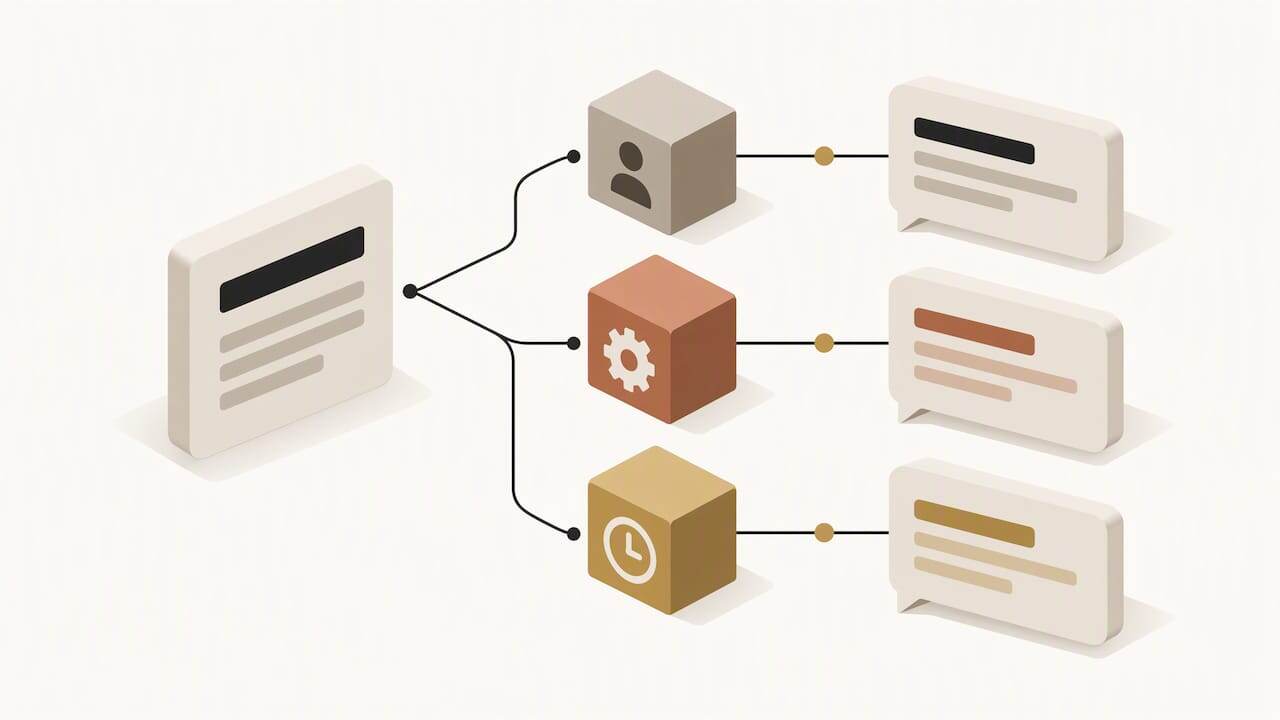
Split your templates by type of service and by how often people visit. A regular can get a shorter reminder, because they already know the drill; a new customer appreciates a confirmation with more context (address, estimated duration, what to bring). Avoid personalising for the sake of it: adding the name to every sentence or repeating details the customer already knows makes things less clear, not more.
Another key point is keeping the tone consistent across templates. If your welcome is warm and informal, the appointment reminder shouldn't sound bureaucratic. Review your set of templates as if it were a single conversation, not separate messages.
Finally, update your templates based on what you see in the replies. If a confirmation that includes the price prompts more questions than one without it, try taking it out and leaving it just in the quick reply. Advanced personalisation isn't about adding more variables; it's about fine-tuning which variables matter for each customer segment.
Strategies for effective audience segmentation with templates
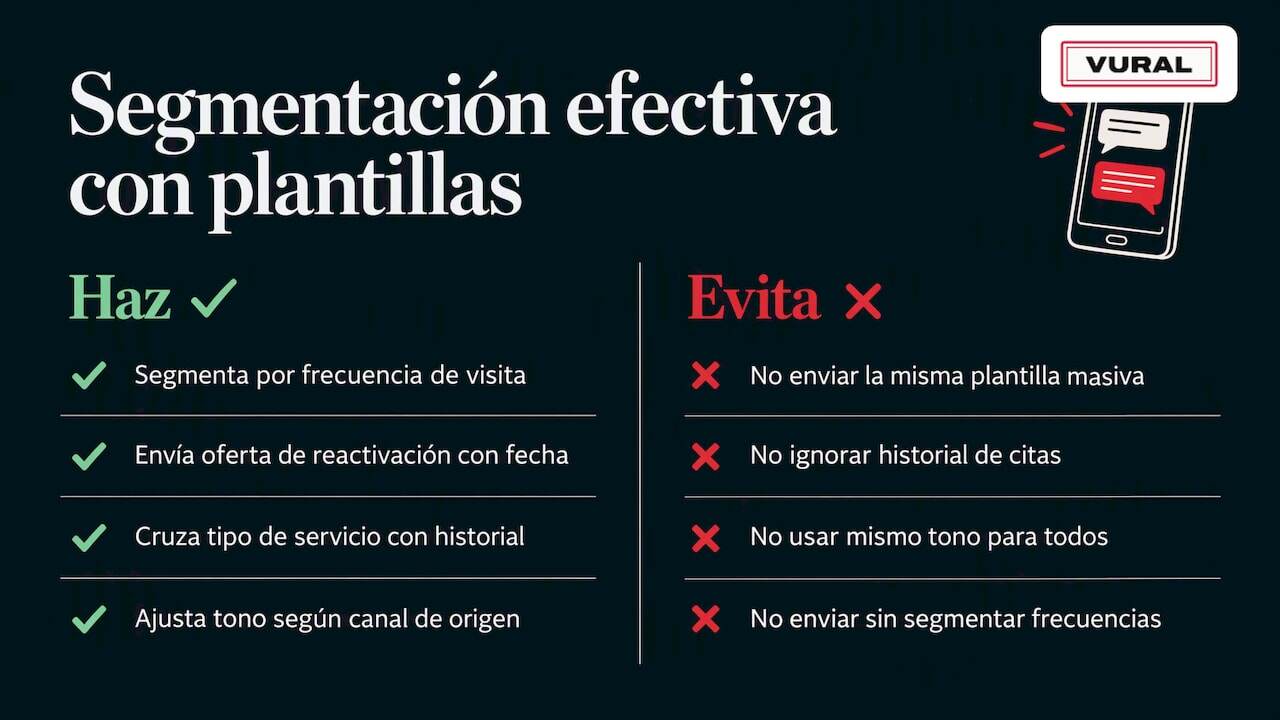
Segmenting properly before sending marketing templates avoids the opposite of what you want: more blocks than bookings. The first useful criterion is how often people visit. Separate regulars from customers who haven't booked for months; the first group can get occasional news, the second a win-back offer with a clear condition and a deadline.
The second criterion is the type of service booked. An invitation to a colour event isn't as interesting to someone who has only had facials. Cross-referencing this with appointment history lets you send fewer but more relevant messages, which lowers the rate at which the channel gets blocked.
It also pays to segment by where the contact came from: a customer who arrived through a social media campaign responds differently from one who booked on a recommendation. Adjusting the tone of the marketing template according to that origin improves the response rate without changing the core content of the message.
Avoid sending the same marketing template to your whole contact list over and over. The tighter your segmentation, the lower the risk that Meta spots complaint patterns linked to your number and limits how many messages you can send.
Integrating templates with a CRM and marketing automation
Once the number of templates grows, managing them from the app stops being practical. Connecting WhatsApp to a CRM lets you trigger the right template depending on each customer's status: an automatic confirmation when they book, a reminder scheduled around the appointment date, a win-back offer after a while without visits.
This integration also brings the conversation history together with the history of appointments and payments, so no one has to look in several places before replying. For businesses with several professionals or locations, having templates and sending rules in a single system cuts errors such as sending two reminders for the same appointment or confirming a slot that's already taken.
If you use marketing automation tools, you can schedule complete sequences: a welcome template on first contact, an automatic reminder before each appointment and a win-back template after a period of inactivity, all triggered by real events in the CRM rather than sent by hand.
An alternative for businesses that live by their diary
If you run a service business with appointments, templates are only half the job: someone has to reply in time, out of hours included. An AI assistant can answer on WhatsApp in real time, even at night or on bank holidays, leave the appointment booked in the diary and, on the Pro and Premium plans, offer cancelled slots to whoever is on the waiting list.
There's no commission per booking, no minimum term, and the monthly fee starts once it's working. You can look at the Inicial, Esencial, Pro and Premium plans and ask for details at Vural.
Frequently asked questions
How do I create templates in WhatsApp Business?
In the app, go to Settings and Business tools to create greeting messages, away messages and quick replies with no prior approval needed. To send automated templates outside the 24-hour window you need the API, where every template is reviewed by Meta before it can be used.
How do I set up WhatsApp for a business?
Download the WhatsApp Business app, verify your business number and complete the profile with opening hours, address and a catalogue of services. From there you can switch on basic automatic messages and, if you need volume or advanced automation, connect the account to the API.
Which WhatsApp is best for businesses?
It depends on volume: the free WhatsApp Business app works well for a business with a single number and a few conversations a day. If you handle a lot of appointments or several agents at once, it's worth moving to the API, which allows approved templates, CRM integrations and more sophisticated automatic replies.
Can you give me examples of message templates for selling on WhatsApp?
An event invitation with a date and limited places, or an offer with a percentage discount and a clear expiry date, are two common examples in the marketing category. Both should set out specific conditions and rely on the customer's prior consent to receive marketing communications.
Sources
More articles
11 October 2026
Appointment confirmation messages: templates ready to use today
Use appointment confirmation messages with ready-made templates for WhatsApp and email. Get more replies, cut no-shows and adapt every text to your business.
10 October 2026
Hotel no-show charges: when they can charge you and how to complain
Find out when a hotel can charge you for not turning up, what conditions it must meet and how to claim a refund if force majeure kept you away.