Appointment confirmation messages: templates ready to use today
11 October 2026

“Hi [name]. We're confirming your appointment on [day] at [time] for [service]. Could you confirm with a yes? If you need to change it, just let us know by replying to this message.” This template works for most appointment-based businesses, and you can turn it into a reminder by swapping “we're confirming” for “just a reminder of”. For simple appointments, WhatsApp is the channel with the best response rate; for more formal matters, email gives you a useful record.
In short:
- Include the client's name, the service, the exact date and time, the place or link, the duration, any instructions needed and a simple way to confirm, change or cancel.
- Send the confirmation straight after booking and schedule the reminder 48 to 24 hours before; add a same-day message when the service warrants it.
- Keep SMS to the bare essentials and a link; use email when the appointment needs instructions beforehand or you need to keep the details on record.
- When someone cancels, automatically offer the slot to your waiting list to recover appointments that would otherwise sit empty.
- Write the full date with the day of the week and add the address or access link to avoid any confusion about when or where to go.
Contents
- Why sending confirmations and reminders improves appointment management
- Essential elements of every confirmation message
- WhatsApp templates and examples (copy and paste)
- Email and SMS templates (copy and paste)
- How and when to automate messages (practical flows)
- Practical value and an example: how an automated assistant improves confirmations
- How to get started today: the recommended way to automate confirmations
- Frequently asked questions
Why sending confirmations and reminders improves appointment management
More and more people book and manage their appointments online, and that includes expecting a clear confirmation through the same channel. Studies by Bitkom show that, in Germany, the share of people booking medical appointments online has grown in recent years, and that automatic reminders are among the features users value most.
A finding that backs this trend: A significant share of users in Bitkom's studies already manage their medical appointments online. This means a client who receives a clear, timely message not only turns up with more confidence but also sees your business as better organised.
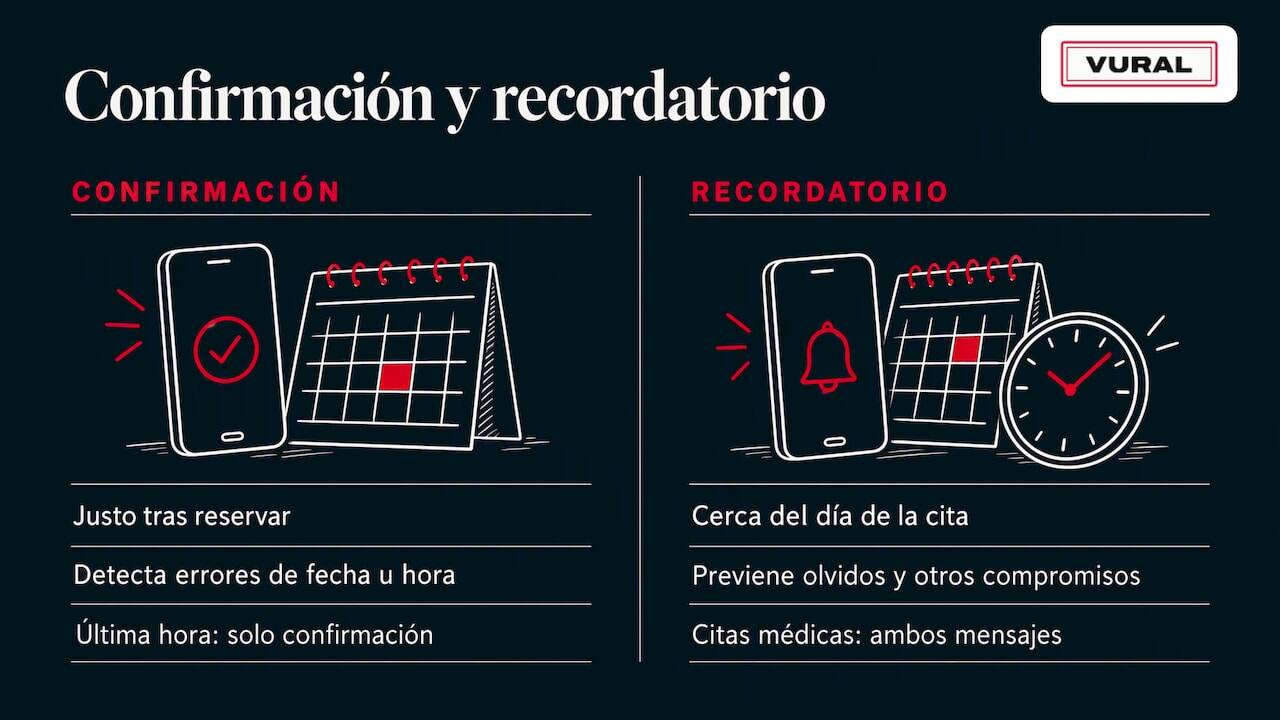
Confirmations and reminders do different jobs. The confirmation seals the agreement right after booking, while it's fresh in the client's mind and it's worth catching any date or time mistakes. The reminder, on the other hand, works closer to the day of the appointment, when the risk of forgetting or of a clash with other commitments is higher. Which one to prioritise depends on the type of service: a medical appointment benefits from both, whereas a last-minute booking may only need the initial confirmation.
Essential elements of every confirmation message
A confirmation message only does its job if the client understands, within seconds, what they need to do. To that end, every message should include:
- The client's name, so they feel the appointment is personal and not a mass mailing.
- The exact date and time, written unambiguously (avoid “next Thursday”; use the full date).
- Place or link, depending on whether it's in person or online, including the address or video call access.
- Approximate duration, useful so the client can plan their day around the appointment.
- Specific instructions, such as what to bring, whether to arrive a few minutes early or how to get into the premises.
- A clear call to action: confirm, change or cancel, with a single word or a link.
The call to action is where most messages fall short. Instead of “get in touch if there's any problem”, “reply YES to confirm, or CHANGE if you need another date” works better. The less effort it takes to reply, the more clients will confirm in time.
Tone and length depend on the channel. A WhatsApp message allows warmth and a polite phrase; an SMS has to be short because every character counts; an email allows more context, but the subject line and first lines should sum up the essentials for anyone who only skims.
Pro tip: Always write the date with the day of the week and the number, for example “Thursday 12 March”: it avoids confusion when the client reads the message days after booking.
WhatsApp templates and examples (copy and paste)
WhatsApp is the most immediate channel for confirming appointments and the one that gets the most quick replies, so it's worth having several versions ready depending on the type of appointment.
- Standard template asking for a reply: “Hi [name], we're confirming your [service] appointment on [date] at [time] at [place]. Reply YES to confirm or CHANGE if you'd prefer another time.”
- Template with a link or action button: “Hi [name], your appointment is booked for [date] at [time]. Tap here to confirm: [link]. If you need to cancel, you can do that from the same link.”
- Template for an online appointment: “Hi [name], your online session is on [date] at [time]. Join the video call from this link: [link]. We'll remind you again the day before.”
- Short reminder template: “Hi [name], just a reminder of your appointment tomorrow at [time] at [place]. See you then!”
To personalise without losing clarity, change only the variables in square brackets and keep the structure: greeting, appointment details, expected action. A few emojis (a clock or a location pin) make the message easier to scan without cluttering it, but avoid long sentences that dilute the essential information, especially in the first line, which is what shows in the notification.
Email and SMS templates (copy and paste)
SMS demands maximum brevity because each message has a character limit and the client reads it at a glance. Email, on the other hand, allows more detail and stays saved for reference, which is useful for appointments that need some preparation.
- Minimal SMS: “[Business]: appointment confirmed [date] [time]. Manage it here: [link].”
- Reminder SMS: “[Business]: see you tomorrow at [time]. If you can't make it, let us know: [link].”
- Email, subject line: “Confirmation of your appointment on [date] at [time]”
- Email, body: “Hi [name], we're confirming your [service] appointment on [date] at [time] at [address or link]. If you need to change it, reply to this email or use this link: [link]. See you then!”
The variations differ little between sectors: a beauty salon might add “please come with clean, dry hair”, a dental clinic might include “bring your report if you have a recent one”, and a consultancy might replace the place with a video call link. The structure (greeting, details, action) always stays the same.
How and when to automate messages (practical flows)
A well-defined sending schedule cuts no-shows without you having to keep an eye on your phone all day.
- Immediate confirmation on booking: sent the moment the client books, to seal the agreement while the details are fresh.
- Reminder 48 to 24 hours before: repeats the date, time and place, and offers an easy way to change.
- Final same-day message, when the type of service warrants it, such as medical appointments or long sessions.
- Handling replies: if the client cancels, the slot should be offered automatically to a waiting list instead of sitting empty.
Connecting AI to your diary and CRM lets you automate these steps and suggest slots based on the client's history, which cuts the manual work of resending messages one by one.
Pro tip: Decide in advance what happens if the client doesn't reply to the 24-hour reminder: a second short message on the day usually clears up most doubts without coming across as pushy.
Practical value and an example: how an automated assistant improves confirmations
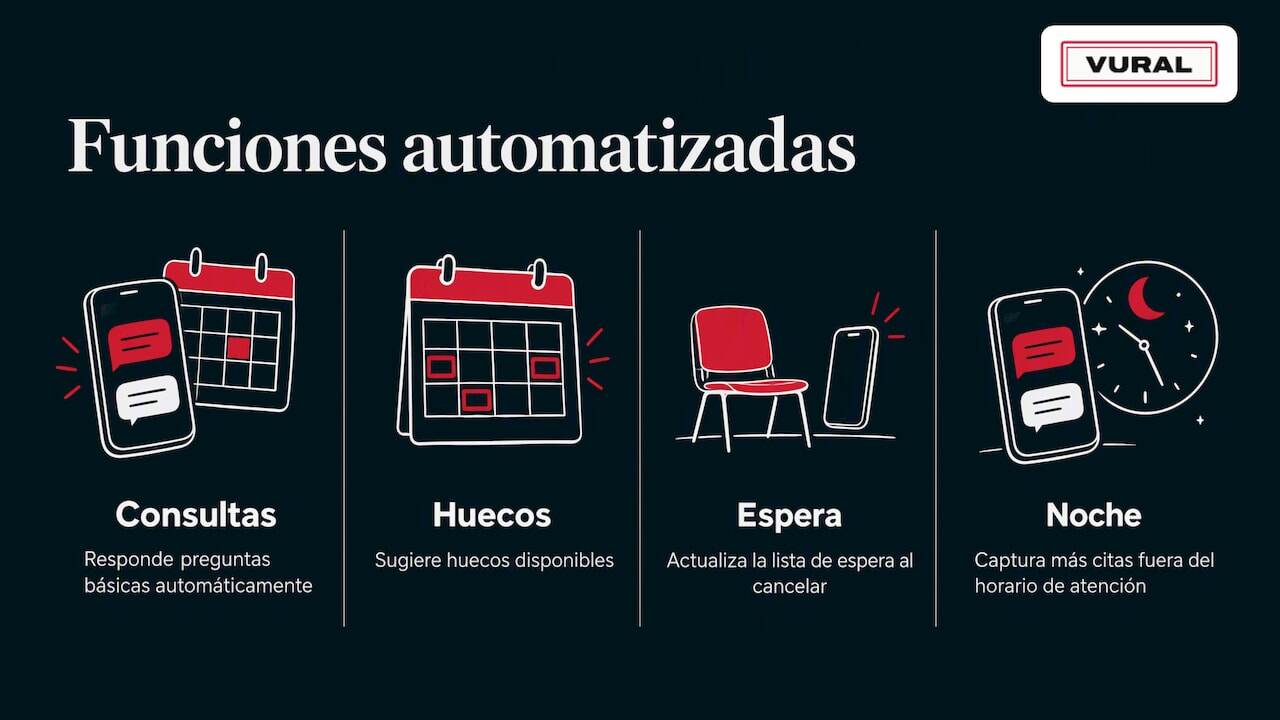
Connecting WhatsApp to your diary changes the way confirmations are handled. Instead of writing every message by hand, an assistant that links both systems answers basic questions, suggests available slots and updates the waiting list when someone cancels, all without anyone on the team having to step in.
The clearest benefit is operational: less time spent resending messages and more appointments captured outside opening hours, when a client who writes at night would usually end up going elsewhere. If you'd like more examples of timings and formats, our article on WhatsApp appointment reminders covers templates and when to send them.
How to get started today: the recommended way to automate confirmations
If you manage a diary with dozens of appointments a week, writing every confirmation by hand becomes unsustainable sooner or later. That's why we built an assistant that replies on WhatsApp 24 hours a day, even when your business is closed.
What our solution includes:
- Automatic replies on WhatsApp at any time, so no enquiry goes unanswered.
- It checks each professional's real availability and leaves the appointment booked in the diary, which can be connected to Google Calendar; the client can change or cancel it by message.
- On the Pro and Premium plans, a waiting list: it offers a cancelled slot to whoever is waiting, with a time limit.
- No commission per booking, unlike other platforms in the sector.
Write to us and we'll set it up with your business's details: the set-up has a fixed price depending on the plan, and the monthly fee starts once it's working. Have a look at the plans available at Vural, which differ in what they automate and in the level of service, not in the size of your business.
Frequently asked questions
What should I write to confirm an appointment?
Include the client's name, the service, the exact date and time, the place or link, and a clear action such as replying “yes” or tapping a link. Keep the message short and leave out anything that isn't essential for attending the appointment.
How do I write a confirmation message?
Start with a personal greeting, follow with the appointment details in a single sentence and finish with the action you expect from the client. The greeting, details, action structure works just as well on WhatsApp, SMS or email.
How do I confirm an appointment with someone?
Send the message straight after booking, while the client clearly remembers the details, and repeat the key information in a reminder 48 to 24 hours before. Make it easy for them to confirm, change or cancel with a single reply.
How do I confirm an appointment on WhatsApp?
Use a short template with the essential details and ask for a simple reply, such as “YES” to confirm.
Recommended reading
More articles

10 October 2026
Hotel no-show charges: when they can charge you and how to complain
Find out when a hotel can charge you for not turning up, what conditions it must meet and how to claim a refund if force majeure kept you away.
9 October 2026
Advance payment for appointments: how to introduce it without friction
Take payment for appointments in advance over WhatsApp: cut no-shows, forecast income better and stop your team chasing payments by hand.