WhatsApp away message: how to turn it on and what to write
6 October 2026
Turn on the away message in WhatsApp Business today and personalise it to keep your customers informed outside your opening hours. You'll find the option under Business tools → Away message, and you only need to decide two things: when it is sent and who receives it.
In short:
- The away message in WhatsApp Business helps manage expectations and reduce repeat messages by giving a realistic response time.
- Setting it up means defining the schedule and the recipients according to the volume and type of customers, with options for custom schedules and for different recipients.
- It is essential to check the internet connection and that your business hours are set up correctly so the message is sent.
- For appointment-based businesses, an AI automation can reply in real time and handle bookings without manual intervention.
- Full automation is usually needed when out-of-hours messages lead to lost appointments or when the volume of enquiries grows.
Table of contents
- Benefits of using away messages for your business
- Step by step: turning on and setting up the away message in WhatsApp Business
- Templates and examples ready to copy (by type of business and tone)
- Recipients and advanced scheduling: choosing the right option
- Common mistakes and how to fix them if the message isn't sent
- Checklist of good practice and tests before turning on the message
- Practical experience and how an AI automation complements the away message
- A brief reflection: built-in message or full automation?
- How Vural can help automate customer service and bookings outside opening hours
- Frequently asked questions
- Sources
Benefits of using away messages for your business
A well-configured away message protects your free time and, at the same time, looks after your relationship with whoever is writing to you. When a customer gets in touch on a Sunday evening and receives an immediate reply with the hours when you'll attend to them, they don't feel ignored. That sense of being looked after, even if it's automatic, makes the difference between a customer who waits patiently and one who tries their luck with the competition.
It also cuts down on repeat contacts: if someone doesn't know when you'll reply, they may well write two or three times to make sure the message got through. A clear notice with the response time avoids that friction and saves you admin time the next day.
- Sets clear expectations about when they'll get a reply.
- Comes across as professional even outside your working hours.
- Reduces duplicate messages and repeated questions.
A realistic timeframe, such as “we'll reply within 24 working hours”, builds more trust than a vague promise of an instant answer.
Step by step: turning on and setting up the away message in WhatsApp Business
Setting it up takes just a few minutes if you follow the right order. WhatsApp's official documentation details the schedule and recipient options you'll see in the app, and the iPhone help centre covers the same process step by step for that system.
- Open WhatsApp Business and go to Settings.
- Tap Business tools and select Away message.
- Turn on the switch and write the text you want to send.
- Go to Schedule and choose one of three options: always send, custom schedule or outside of business hours.
- If you choose outside of business hours, make sure you have already set your business hours in your business profile, because this option depends on it.
- Go to Recipients and decide whether the message goes to everyone, only to people not in your address book, to everyone except certain contacts, or only to selected contacts.
- Save the changes and check that the main switch stays on.
Each schedule option has a different implication. “Always send” is useful if you only work by appointment and want every message to get an automatic reply. “Custom schedule” gives you full control over specific time slots, such as weekends. “Outside of business hours” is the most convenient if you have already set your working hours, because it switches on by itself without you having to duplicate the setup.
As for recipients, sending it to everyone makes sense for small businesses with low volume, whereas limiting it to people not in your address book stops a regular customer from getting the same notice every time they write to you.
Before you consider the setup finished, check that your device has an active internet connection, as automatic messages aren't sent without one, and check the time zone if you work with customers in another location, as recommended by this article from La Nación (Argentina) on automatic messages.
Pro tip: keep the message text in a separate note before pasting it in, so you avoid typos you'd later have to fix inside the app.
Templates and examples ready to copy (by type of business and tone)
The text should sound like you, not like a machine.
- Hair salon or beauty: “Hi! Thanks for getting in touch. We're closed right now, but we'll reply as soon as we open. If you'd like to book directly, you can do so through our appointments link.”
- Physiotherapy or clinic: “Thank you for your message. Our opening hours are Monday to Friday, 9:00 to 20:00. We'll reply within those hours as soon as possible.”
- E-commerce or orders: “We've received your message outside our opening hours. We reply within 24 working hours at most. If your query is about an order, let us know the number and we'll look into it as soon as we open.”
- A friendly tone for small businesses: “Hi! We're not around right now, but we'll read your message as soon as we're back. Thanks for your patience!”
Match the vocabulary to the way you normally talk to your customers: if you usually keep it informal, do the same here. Avoid including sensitive details such as home addresses or payment amounts, and keep the message short, because a long text is harder to read on a phone and less effective.
Recipients and advanced scheduling: choosing the right option
Not every customer needs the same message. A new customer writing for the first time appreciates a full reply with your hours and how to get in touch, whereas a regular may feel they're getting redundant information if they already know how you work.
- Use “everyone” when your message volume is low and you prefer to keep things simple.
- Use “everyone not in your address book” to give a fuller welcome only to people writing to you for the first time.
- Keep “only selected contacts” for one-off notices, such as a temporary holiday absence aimed at specific customers.
A point that is often overlooked: if you already have a greeting message or quick replies turned on, check how they interact with each other. Combining a greeting and an away message can mean the same customer gets two almost identical messages out of hours, which creates confusion rather than clarity.
Pro tip: if you use several automations at once, write down in a note which message is triggered in each situation. It will save you time when you need to adjust one.
Common mistakes and how to fix them if the message isn't sent
When the away message doesn't arrive, it's almost always for one of these reasons:
- You haven't set your business hours but chose the “outside of business hours” option, which depends on them to work.
- The device WhatsApp Business is installed on has no active internet connection at the time of sending.
- You have another automation turned on that clashes with the away message, or you're sending notices to the same conversation too often.
- Automated or bulk sending outside the tools designed for businesses can lead to your account being suspended, so it's best to stick to WhatsApp Business's built-in features.
If the problem persists after checking these points, try writing from another number that isn't saved in your address book and see whether the message arrives correctly.
Checklist of good practice and tests before turning on the message
Before you sign off your away message, follow these steps:
- Write from another number, preferably one that isn't in your address book, and check that the message arrives as you set it up.
- Check whether it overlaps with the greeting message or any quick replies you have turned on.
- Remove any sensitive details from the text and shorten it if it runs to more than two or three sentences.
- Note down the result of the test: time sent, recipient and whether the configured schedule was respected.
- Adjust the text or the schedule based on what you've observed and repeat the test once more.
Pro tip: run the first test just before closing on an ordinary day, so you can check in real conditions whether the business hours you set match the ones you actually keep.
Practical experience and how an AI automation complements the away message
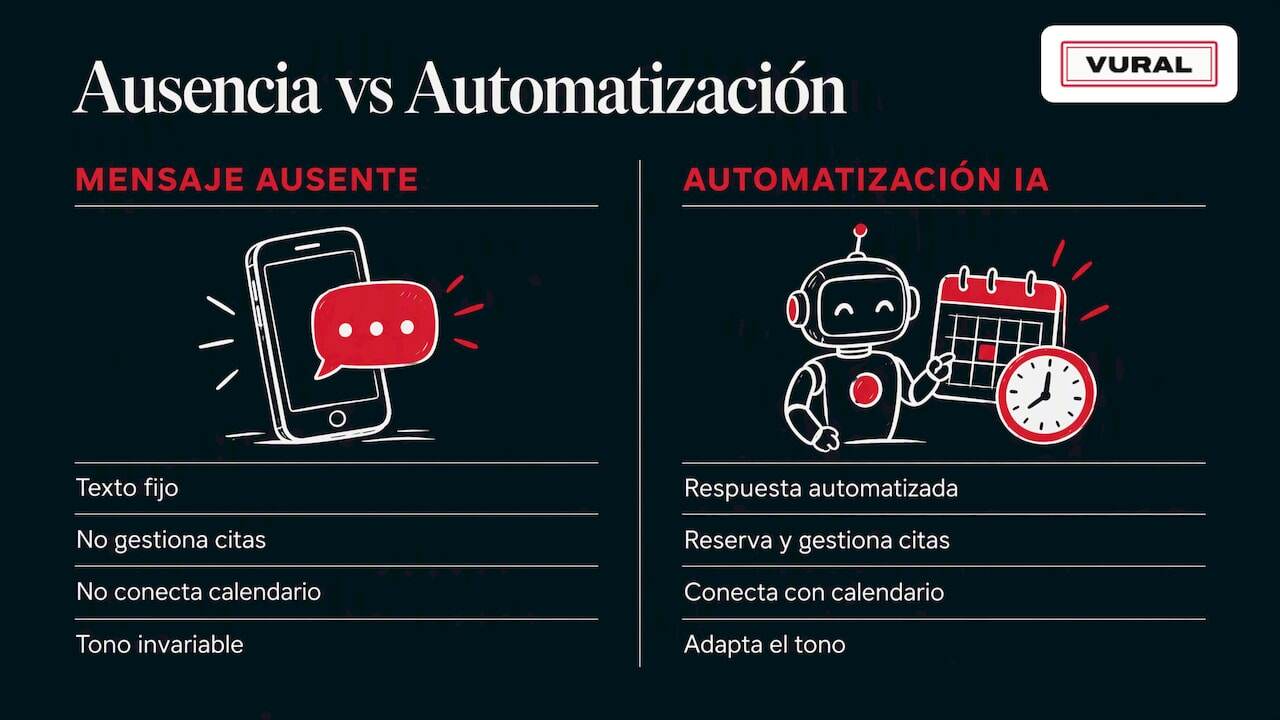
The away message does its job when the volume of enquiries is manageable. The problem comes when those enquiries are actually appointment requests: a fixed text solves nothing there, it just puts the conversation off.
For businesses that work by appointment, such as hair salons, physiotherapy centres or beauty centres, an artificial intelligence automation can go a step further: it replies in real time even out of hours, fills slots cancelled at the last minute and handles the booking without you having to step in. Unlike a static text, this kind of solution adapts its tone to each business and connects to the calendar to avoid double bookings.
A brief reflection: built-in message or full automation?
The away message is enough as long as your business gets few repeat enquiries out of hours. When you start losing appointments because nobody replies in time, or you notice that cancelled slots don't fill themselves, it's time to try something more complete. The recommendation is simple: measure how many out-of-hours messages end in a lost appointment, pilot an automation for a few weeks and scale up only if the results justify it.
How Vural can help automate customer service and bookings outside opening hours
When the away message is no longer enough because your business lives on appointments, we offer a way to go beyond a simple automatic notice. We reply on WhatsApp in real time, even in the small hours or at the weekend, handle the booking and, on the Pro and Premium plans, offer cancelled slots to your waiting list, without you having to keep checking your diary.
- We reply to your customers on WhatsApp outside your working hours.
- We handle bookings and cancellations automatically, and the waiting list on Pro and Premium.
- We can connect to Google Calendar to avoid double bookings.
If you'd like to see how this fits into your day-to-day, you can visit Vural to clear up any questions about availability.
Frequently asked questions
How do I set an away message on WhatsApp?
Go to Settings, tap Business tools and select Away message. Turn on the switch, write the text, choose when it's sent and set who receives it before saving.
What should an away message say?
A good message confirms you've received the enquiry, gives a realistic response time and, where relevant, offers an alternative such as a booking link. Keep it short and avoid including sensitive details or promises you can't keep.
Why isn't my WhatsApp away message being sent?
The most common causes are not having set your business hours when you choose “outside of business hours”, no internet connection on the device, or a clash with another automation running at the same time. Checking these three points solves most cases.
How do I turn off the away message on WhatsApp?
Go to Business tools, select Away message and turn off the main switch. The text stays saved in case you want to turn it back on later without having to write it again.
Sources
More articles

11 October 2026
Appointment confirmation messages: templates ready to use today
Use appointment confirmation messages with ready-made templates for WhatsApp and email. Get more replies, cut no-shows and adapt every text to your business.

10 October 2026
Hotel no-show charges: when they can charge you and how to complain
Find out when a hotel can charge you for not turning up, what conditions it must meet and how to claim a refund if force majeure kept you away.