How to connect WhatsApp and Google Calendar for bookings
22 October 2026

WhatsApp and Google Calendar don't connect on their own: you need a tool in between that reads your customers' messages and writes the appointments into your calendar. For an appointment-based business (hair salon, beauty, physiotherapy, dental clinic) the most practical option is an assistant that does both at once: replies on WhatsApp and puts the appointment in Google Calendar without you stepping in.
In this guide we explain the real ways to link them, the advantages and limits of each, what to look after with your customers' data and how we do it at Vural.
In short
- Neither WhatsApp nor WhatsApp Business comes with its own Google Calendar connection, as far as we know. You need a tool to act as the bridge.
- There are three routes: copy appointments by hand, use stand-alone automations or sign up for an AI booking assistant that already joins the two.
- What matters isn't just “syncing”: it's that the customer can book at any hour and the slot is blocked in your calendar instantly.
- Keep your personal calendar apart from your work one and tell your customers how you handle their data.
Contents
- What connecting WhatsApp with Google Calendar means
- Three ways to link WhatsApp and Google Calendar
- Quick comparison
- What a connected booking looks like, step by step
- What to prepare before you connect anything
- WhatsApp, Google Calendar and data protection
- Our view: syncing isn't what matters
- How we do it at Vural
- When it makes sense to take the step
- A smooth setup
- Frequently asked questions
- Sources
What connecting WhatsApp with Google Calendar means
When someone searches for “connect WhatsApp with Google Calendar”, they usually want one of these three things:
- A booking requested on WhatsApp to show up in the calendar without copying it by hand.
- The customer to get a reminder of the appointment on WhatsApp.
- The customer to be able to see your free slots and pick one without phoning.
All three are possible, but not with the same tool or the same effort. And none of them happens by magic: someone (a person, an automation or an AI) has to read the message, check the calendar, decide whether the slot is free and write the appointment.
That's why it pays to think about the whole flow and not just the “sync”. A customer writes: “Have you got a slot on Thursday afternoon for a cut and colour?”. To answer properly you need to know:
- how long that service takes,
- who can do it,
- which slots are genuinely free,
- and which terms or prices apply.
If the connection only copies data from one place to another, you're still doing the work of thinking and replying.
Three ways to link WhatsApp and Google Calendar
1. By hand: you read, you write it down
This is what most small businesses do. Customers message you on WhatsApp, you check the calendar, reply and create the event.
Advantages: it costs nothing and needs no setting up.
Limits:
- You only reply when you've got your phone in front of you.
- Copying errors creep in: double bookings, wrong times, forgotten customers.
- Out of hours, the message waits until the next day. And sometimes the customer has already booked somewhere else.
If your volume is low (a few appointments a week), it may be enough. If not, it's a constant source of interruptions.
2. Stand-alone automations between apps
There are connectors that react to one event and trigger another: for example, “when an event is created in Google Calendar, send a WhatsApp message”. They're mainly useful for reminders and simple notices.
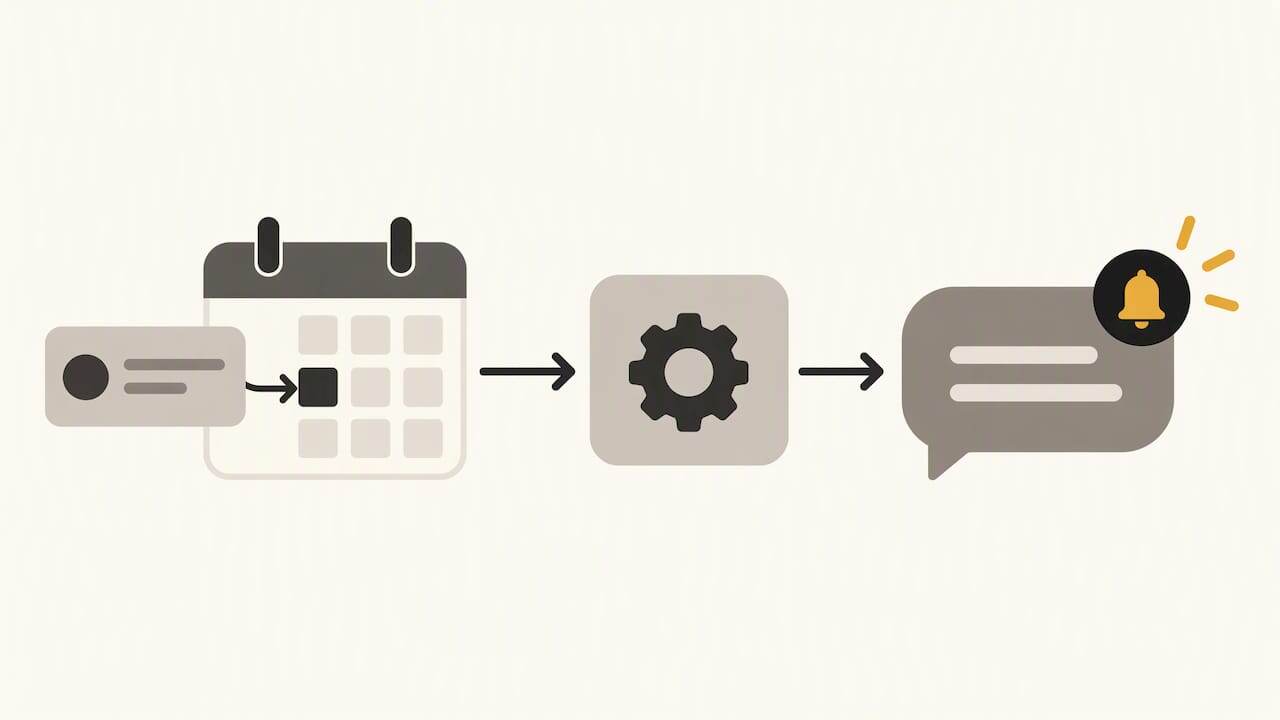
Advantages: they're flexible and, for simple cases, cheap.
Limits:
- They tend to work in one direction only. They send the notice but don't understand the customer's reply.
- They usually require the business version of WhatsApp with API access, with its own sign-up and terms.
- Each piece is set up separately. If something fails, you have to work out which one.
- They don't know your rules: service lengths, breaks, deposits, waiting list.
If all you need is to send a reminder, this route may be enough. To see what that reminder should say and when to send it, have a look at the practical guide to WhatsApp appointment reminders.
3. An AI booking assistant that already joins the two
Here the Google Calendar connection is one part of a system that looks after the customer from start to finish. The customer writes on WhatsApp, the assistant understands the request, checks the diary, offers slots, confirms and records the appointment.
Advantages:
- It replies at any hour, including at night and on bank holidays.
- It works with your business's rules: services, durations, prices and terms.
- It handles cancellations and changes, and can offer the freed slot to whoever is on the waiting list.
- Everything stays in one place instead of being spread across chats, notebooks and calendars.
Limits: it has a monthly fee and an initial setup. It pays off if appointments are your main source of income and WhatsApp takes hours out of your week.
Quick comparison
Criterion By hand Stand-alone automation AI assistant Replies out of hours No Notices only Yes Understands customers' free-form messages You No Yes Writes the appointment in Google Calendar You Depends Yes Handles changes and cancellations You Limited Yes Reuses cancelled slots You No Yes Setup effort None Medium We do it with you Cost Your time Variable Monthly feeWhat a connected booking looks like, step by step
An example from a hair salon, at 22:40 on a Tuesday:
- 22:40. A customer writes: “I'd like a haircut this week, have you got anything on Friday?”.
- 22:40. The assistant recognises the service, checks the calendar and replies with Friday's free slots.
- 22:42. The customer picks 17:30. The assistant confirms the booking and adds it to Google Calendar.
- Wednesday, 9:00. You open the salon and the appointment is already in your diary. You haven't had to do a thing.
- Thursday. If the customer cancels, the slot is free again and can be offered to someone else.
That's the real shift: the booking happens when the customer feels like booking, not when you can look at your phone. If you want the detail of the process, it's in our guide to WhatsApp bookings.
What to prepare before you connect anything
Whatever the tool, these steps prevent most problems.
Tidy up your calendar
- One calendar per professional or per resource (chair, cabin, treatment room). That way the system knows who is free.
- Services with their real length. A colour doesn't take as long as a cut, and if the length is wrong, appointments overlap.
- Breaks and holidays blocked out. If they're not in the calendar, nobody knows you're away.
Keep personal and work apart
A common mistake is mixing your personal calendar with the business one. The recommendations of the Austrian online safety portal point out that online calendars are easily shared, which means taking care over who sees what. In practice: create a calendar just for the business's appointments and don't mix it with birthdays, doctor's visits or family plans.
If you work with a team, give each person only the access they need. And if you use a Google business account, according to Google Calendar help, it's the administrator who decides whether calendars can be shared.
Check what is shared
Before giving any tool access, check which event details it can read: customer name, service, phone number, notes. If your calendar is public by mistake, anyone could see the appointments. Google explains how public calendars work, and it's worth confirming yours isn't one.
Decide what the assistant can do on its own
Ask yourself:
- Can it confirm appointments without you checking them?
- Can it cancel or move an appointment?
- Does it ask for a deposit on long or expensive services?
- When should it hand the conversation over to you?
The clearer these rules are, the better it works.
WhatsApp, Google Calendar and data protection
When you connect both systems, your customers' data (name, phone number, type of service and, in physiotherapy or dental clinics, sensitive information) passes through more hands. This isn't a technical detail: it's an obligation.
Three things to bear in mind:
- Use WhatsApp Business, not the personal app. A legal guide on business communication over WhatsApp points out that ordinary WhatsApp Messenger is designed for private individuals, and that using it for work raises legal problems. That guide refers to the German framework, but the reasoning is a useful warning here too: check the terms of the business version.
- Inform the customer. The same source notes that WhatsApp shares metadata with Meta, so a clear notice, on your website or when the chat starts, about how data is handled is a good idea. In Spain, that information falls under the GDPR.
- Ask only for what you need. Name, phone number and service are usually enough. Don't put diagnoses or clinical notes in the title of a calendar event.
You can read the WhatsApp Business app privacy policy to see what data the app processes. And if you'd like a practical guide to complying without losing bookings, we have one in WhatsApp and GDPR for businesses. How we handle data in our service is set out on the privacy page.
If you run a physiotherapy practice, the subject deserves a closer read: there's an example in automating physiotherapy appointments with AI and WhatsApp.
Our view: syncing isn't what matters
In hair salons, beauty salons, physiotherapy and other appointment-based businesses, the first question is usually about syncing: “does it connect to my Google Calendar?”. It's a good question, but it isn't the most important one.
What really costs an appointment-based business money is something else:
- The message that arrives at eleven at night and gets answered at nine the next morning.
- The last-minute cancellation that leaves an empty slot.
- The hours spent typing “does five o'clock suit you?” instead of looking after whoever is in the chair.
A synced calendar solves the admin side. It doesn't solve the conversation. That's why our assistant does both: it talks to the customer on WhatsApp, in your business's tone and vocabulary, and works on your diary, which we connect to Google Calendar. It sticks to the services, terms and prices you set, and we charge no commission per booking.
We also believe the best tool is the one that doesn't make you juggle five systems. If the chat is in one place, the diary in another, payments in a third and reports in a spreadsheet, the chaos just changes shape. Centralising is the advantage.
How we do it at Vural
Our AI booking assistant looks after your customers on WhatsApp and works with your diary. This is what it includes:
- Automatic bookings, changes and cancellations over WhatsApp.
- Google Calendar connection.
- A record for each customer (past appointments, notes and preferences), so the same questions aren't asked every time.
- Deposit with Stripe at booking, on the Premium plan only.
- Waiting list on the Pro and Premium plans: it offers cancelled slots to whoever is waiting.
- Tone and vocabulary adapted to your business.
- Weekly summary and business report, on the Pro and Premium plans.
We set it up with your data, the fee starts once it's working and there's no minimum term.
Prices
There are four plans, each with a monthly fee and a one-off setup payment at a fixed price depending on the plan:
Plan Fee Inicial €79 a month Esencial €199 a month Pro €399 a month Premium €999 a monthPrices exclude VAT. Setup is a one-off payment: €480 on Inicial, €900 on Esencial, €1,200 on Pro and from €1,800 on Premium. If you need more AI conversations, you can add packs of 250 conversations for €99. You'll find all the detail at vural.io and the fee and cancellation terms in the terms of service.
When it makes sense to take the step
Not every business needs an assistant. It usually pays off if several of these situations sound familiar:
- You get lots of booking enquiries on WhatsApp every week.
- You lose appointments by replying late or out of hours.
- You have no-shows or late cancellations that leave slots unfilled.
- You work with several professionals and the diary gets messy.
- You want to confirm appointments without writing message after message. There are templates for confirming appointments to start from.
If you get few appointments and handle them calmly, start with the basics: a tidy calendar, WhatsApp Business and reminders. When volume grows, automation will be there.
A smooth setup
This is the order we recommend, with or without an assistant:
- Clean up your calendar and create one just for appointments.
- List your services with length, price and who does them.
- Set your rules: minimum notice, cancellation deadline, deposits.
- Write the data notice the customer will see when the chat starts.
- Run tests with dummy appointments: book, change and cancel.
- Check the first week every day. Fix whatever doesn't sound like you.
- Measure results: appointments won out of hours, slots recovered, time saved.
A good system shows in what stops happening: fewer unanswered messages, fewer empty slots and fewer evenings glued to your phone.
Frequently asked questions
Can WhatsApp be connected directly to Google Calendar?
As far as we know, there's no native connection in either WhatsApp or WhatsApp Business. You need a tool in between: an automation or a booking assistant that reads the messages and writes to the calendar. Always check that the tool works with the version of WhatsApp you use.
Can I sync my WhatsApp with Google Calendar to send reminders?
Yes, with a connector or with an assistant that already includes it. The reminder comes from the calendar event and reaches the customer on WhatsApp a few hours or a day before. In the practical guide to WhatsApp appointment reminders we explain what to put in it and when to send it.
Is it safe to connect my business calendar?
Yes, if you go about it carefully. Use a calendar just for the business, give access only to those who need it, check it isn't public and tell customers how you handle their data. If you have doubts about health data, ask a data protection professional.
What happens if a customer writes out of hours?
With manual handling, the message waits until you see it. With an AI assistant connected to your diary, the customer gets an answer straight away and can book a free slot at any hour. You see the appointment in your calendar the next day.
Sources
- Online-Kalender: Was geschieht mit unseren Daten? (onlinesicherheit.gv.at)
- Kalender freigeben, Google Calendar help
- Öffentliche Google-Kalender erstellen und verwalten, Google Calendar help
- Geschäftliche Kommunikation per WhatsApp: Was ist rechtlich erlaubt? (ratgeberrecht.eu)
- WhatsApp Business app privacy policy
Recommended reading
More articles

21 October 2026
How to sync your diary with Google Calendar step by step
Learn how to sync your diary with Google Calendar: the options available, common mistakes, data privacy and how to avoid double bookings in your business.

20 October 2026
Salon client records: what to include and how to keep them
How to keep client records for your hair salon: what data to store, what to avoid, how long to keep it and how to link the record to your diary and WhatsApp.