How to sync your diary with Google Calendar step by step
21 October 2026

To sync your diary with Google Calendar you have three options: connect the account in the other app, subscribe with an iCal link (read-only) or use an API integration that reads and writes appointments. Which one suits you depends on one question: who creates the appointments, you by hand or a system that books for you, for example over WhatsApp?
In this guide we explain each option, when to use it, which mistakes cause the most trouble and what to watch out for with your customers' data. It is written for hair salons, beauty salons, physiotherapists and other businesses that work by appointment.
In short
- Connected account: two-way sync, you can view and edit. It is the most complete option for your day-to-day diary.
- iCal link: you can only view events. It is for checking, not for managing bookings.
- Importing an .ics file is not syncing: it is a one-off copy that does not update itself.
- If you take bookings over WhatsApp, the sensible thing is for a single tool to write to Google Calendar, so appointments are not duplicated or overwritten.
- Customer data: if Google Calendar stores names and notes, review your privacy policy and the permissions you give each app.
Contents
- What syncing means: three different ways
- How to sync your diary by device or program
- When your appointments come in over WhatsApp
- What to do when Google Calendar won't sync
- Privacy: what people tend to overlook
- Our point of view
- How we solve it at Vural
- Setting up the connection properly: a checklist
- An example day at a hair salon
- Frequently asked questions
- Sources
What syncing means: three different ways
The word “sync” is used for very different things. Before you change anything, work out which one you need.
Option What you can do Updates itself What it is for Connect the account View and edit Yes Working with the same diary on several devices or programs iCal link View only Yes, with a delay Checking your diary in another program Import an .ics file Copy of events No Moving old appointments once API integration Read and create appointments, depending on permissions Yes Letting a booking tool use your calendarGoogle explains it in its help pages: there are two ways to use your Google Calendar in another app, account sync and the iCal link, which is view-only. The same page warns that the read-only link can take a while to reflect changes, for example up to around ten minutes with Google Workspace Sync for Microsoft Outlook.
And a useful clarification: Google states that importing a file is just a one-off upload of events, not an ongoing sync. Also, importing an event does not bring over its guests or conferencing details.
How to sync your diary by device or program
On your phone
If you use Android, Google Calendar is usually already linked to your Google account. Check in your phone's settings that Calendar sync is switched on for that account. On an iPhone, add your Google account in Settings and turn on Calendars.
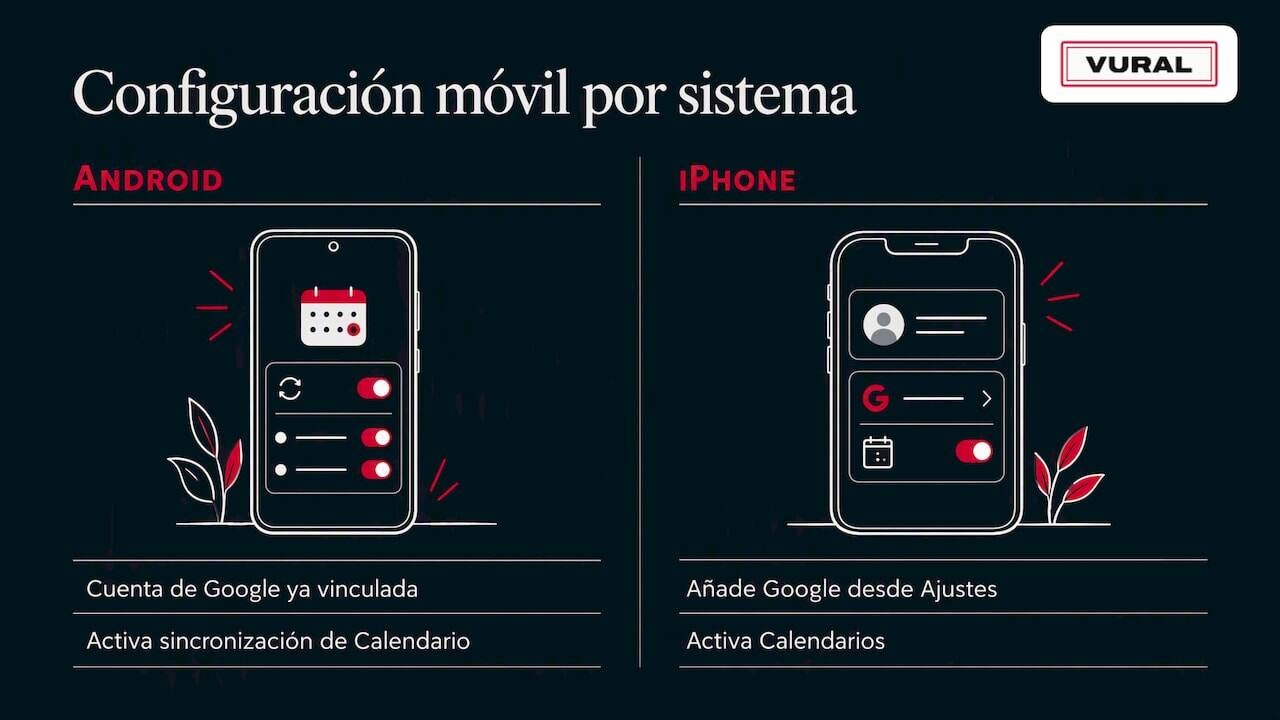
If you can't see a particular calendar, the problem is hardly ever the sync. It is usually that the calendar is hidden. Open the app and tick the calendar's box in the side list.
With Outlook or Apple Calendar
Here are the two options from the table:
- If you want to view and edit: add your Google account to the other app as a calendar account.
- If you only want to view: in Google Calendar open the calendar's “Settings and sharing”, copy the secret address in iCal format and paste it into the other app as an internet calendar.
Treat that link like a password. Anyone who has it can see your appointments, with your customers' names in them.
Between two Google calendars
Sharing a calendar does not merge them. Sharing gives access; it does not create a copy that stays up to date in the other one. If you need two calendars to mirror each other, you will have to use a dedicated tool. Before adding another piece, ask yourself whether a single calendar, with permissions for your whole team, would do.
When your appointments come in over WhatsApp
In an appointment-based business, the calendar is rarely filled in by just one person. Reception books appointments, a practitioner blocks out an hour and a customer messages on WhatsApp at eleven at night. If each thing lives somewhere different, the usual problems appear:
- Two customers booked at the same time.
- A slot that shows as free in the calendar but has already been promised by message.
- A cancellation that nobody offers again.
The answer is not to sync more, but to decide which is the single source of truth. Google Calendar can be it, as long as whatever books and cancels writes to it directly. If you want to go deeper into the WhatsApp side, we have a guide on how to receive and automate bookings over WhatsApp and another on the WhatsApp away message.
A simple rule to avoid double bookings
- Choose a single appointments calendar (for example, one per practitioner).
- Let automatic bookings write to that calendar and no other.
- Use a separate calendar for personal things, holidays or tasks.
- If someone edits by hand, they should do it in that same calendar, not in a copy.
With tasks it is worth going further: according to ClickUp's documentation on its integration, tools of this kind can push tasks into the calendar as blocks. If you have a lot of them, the calendar fills up. The practical thing is to create a separate Google calendar for tasks and show or hide it whenever you like. That way your appointments calendar stays clean.
Waiting lists and slots that free up
Syncing well is not just copying events. When someone cancels, that slot is worth money for a few hours. If the calendar updates but nobody tells whoever was waiting, the slot is lost.
The logic of holding a slot for a few minutes while a customer confirms is used in other sectors too. For example, the hold timers on bookings for tables, rooms or tee times. With appointments at a salon or a practice the principle is the same: offer the slot, give a short window to confirm and, if there is no reply, pass it on to the next person on the list.
What to do when Google Calendar won't sync
Before reinstalling anything, check these in order:
- Is the calendar visible? Open Google Calendar and tick the calendar in the side list.
- Is it the right account? Many businesses have a personal account and a business one. Check which one the event was created in.
- Are you using an iCal link? Then the delay is normal and you cannot edit from the other program.
- Did you import a file? It will not update, because it was a one-off upload. Switch to a connected account.
- Are two tools writing at the same time? This is the most common cause of duplicates. Keep just one.
- Was a permission revoked? If you changed your Google password, you may need to authorise the connection again.
Privacy: what people tend to overlook
A hair salon's diary seems harmless. A physiotherapist's or a dental clinic's is not: the reason for the appointment can be health data. And in any business, names, phone numbers and email addresses are already personal data.
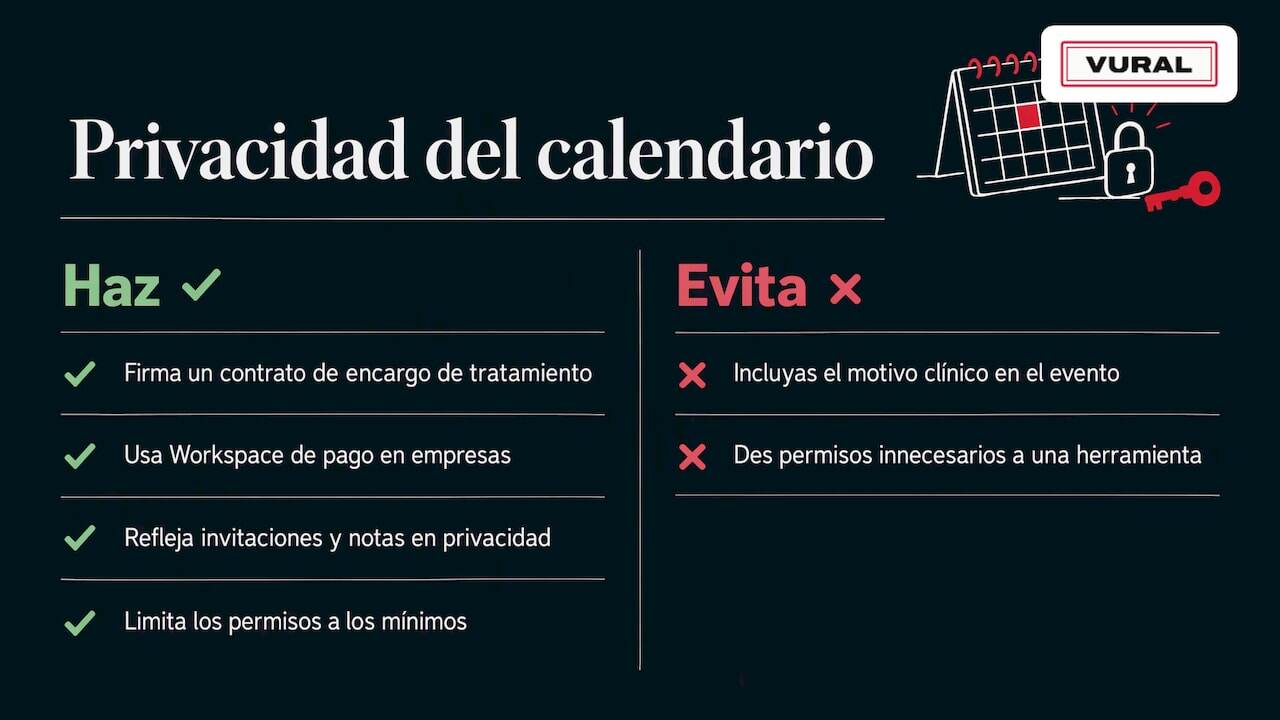
The source we reviewed is German, but the framework is the GDPR, which applies across the EU. According to e-recht24, since January 2024 Google Calendar can be used in the EU if a data processing agreement is signed, and for businesses that is only safe with a paid Google Workspace account. It adds that if you invite customers by email or keep notes in events, you must say so in your privacy policy. It is a German source and is no substitute for professional advice: if you store health data, check with your adviser or data protection officer.
Another good practice: limit permissions. A privacy notice from a medical practice describes how its integration uses the Google Calendar API only to plan and coordinate appointments, by reading free slots. Whenever you connect a tool, ask what permissions it requests and whether they are the minimum needed to manage your time.
Finally, avoid putting sensitive information in the event title. “Appointment 17:00, Marta” is enough. The clinical reason does not need to be in the calendar.
Our point of view
The same pattern repeats itself in appointment-based businesses. A business has Google Calendar, a notebook, WhatsApp on the phone and sometimes another program. Nobody gets it wrong out of bad faith: the information is scattered.
That is why we argue for having the diary and the conversation in one place. Our assistant replies to your customers on WhatsApp, out of hours too, and handles bookings and cancellations while respecting the prices and terms you have set. It connects to Google Calendar so appointments show up where you already look.
Our advice is practical: before syncing anything, decide who is in charge. If Google Calendar is your diary, everything that books should write there. And think about free slots: a well-synced calendar that lets cancellations slip away is still losing income. That is why we care about recovering slots and the waiting list, not just the booking.
How we solve it at Vural
If your appointments already come in over WhatsApp, or you want them to, Vural is an AI virtual assistant that manages the diary and bookings for hair salons, beauty, physiotherapy and dental clinics. This is what it does:
- Replies on WhatsApp in real time, even out of hours.
- Books, changes and cancels appointments automatically and connects to Google Calendar.
- Keeps each customer's record (past appointments, notes and preferences) and adapts its tone to your business.
- On the Pro and Premium plans, offers cancelled slots to whoever is on the waiting list.
- On Pro and Premium it prepares the weekly summary and the business report; on Premium it takes a deposit with Stripe at booking.
- Charges no commission per booking and there is no minimum term.
There are four plans: Inicial (€79 a month), Esencial (€199 a month), Pro (€399 a month) and Premium (€999 a month), excluding VAT. We set it up with your details: setup is a one-off, fixed-price payment (€480 on Inicial, €900 on Esencial, €1,200 on Pro and from €1,800 on Premium) and the monthly fee starts once it is working. You can top up your AI conversations with packs of 250 for €99. See the details at vural.io.
Setting up the connection properly: a checklist
Whatever tool you connect to your Google Calendar, go through these points on day one:
- Account: use a business account, not the owner's personal one.
- One calendar per practitioner, with clear names: “Salon, Ana”, “Physio, Luis”.
- Working hours set in the calendar or in the tool, so that no times outside someone's shift are offered.
- Duration of each service kept consistent. If a colour takes two hours, the slot should be two hours.
- Real test: make a test booking, cancel it and check that it disappears in both places.
- Permissions: review what data the tool can see and remove access you no longer use.
- Who edits: put in writing that appointments are always moved in the appointments calendar.
If you also want to measure whether everything is working, see our guide to booking KPIs. And if you are going to ask for a deposit to reduce no-shows, it helps to read our article on advance payment for appointments.
An example day at a hair salon
Picture a salon with two stylists and Google Calendar as its only diary:
- 21:40: a customer messages on WhatsApp asking for a cut and colour on Saturday.
- 21:41: the assistant checks the free slots in the calendar and suggests two options.
- 21:43: the customer picks one. The appointment is written into the stylist's calendar.
- 08:15 the next day: another customer cancels. The slot is offered to whoever was on the waiting list.
Nobody has had to pick up the shop's phone. And the calendar reflects what has happened, with no copies.
Frequently asked questions
How do I sync two Gmail calendars?
Sharing a calendar gives access, but it does not create a copy that stays up to date in the other one. If you only need to see one inside the other, share the calendar with the other account. If you need both to mirror each other, you will need a sync tool.
Can I see my Google Calendar in Outlook?
Yes. You can add your Google account to Outlook to view and edit, or subscribe with the iCal link if you only want to check it. With the link, changes can take a while to appear and cannot be edited from Outlook.
Does importing an .ics file sync my diary?
No. Importing copies the events once and does not update afterwards. To keep your diary up to date, connect the account or use an integration.
Can I use Google Calendar as a shared team diary?
Yes, by creating one calendar per practitioner or a shared one and sharing it with different permissions: view only or edit. For businesses that handle health data, check first with your data protection adviser which Google account to use. We cover this above, in the privacy section.
Sources
- Kalender mit Computerprogrammen synchronisieren, Google Calendar Help
- Termine in Google Kalender importieren, Google Calendar Help
- Datenschutzerklärung für Google Calendar, e-recht24
- Google-Kalender-Integration, Datenschutzhinweise, Praxis Dr. Stockburger
- Google Kalender-Integration, ClickUp Help
Recommended reading
More articles
22 October 2026
How to connect WhatsApp and Google Calendar for bookings
How to connect WhatsApp and Google Calendar in an appointment business: what is possible, the options, what to watch with data and when to automate it all.

20 October 2026
Salon client records: what to include and how to keep them
How to keep client records for your hair salon: what data to store, what to avoid, how long to keep it and how to link the record to your diary and WhatsApp.